Claude Code Remote Control + Ollama: Control Your GPU Server from Your Phone
If you have a GPU server at home or in the cloud running Ollama, you can combine it with Claude Code’s Remote Control feature to manage coding sessions from your phone while the inference happens on your own hardware. Here is how that works and why it is a useful setup.
What is Remote Control?
Remote Control is a research preview feature in Claude Code (available on Max plans) that lets you continue a local terminal session from your phone, tablet, or any browser.
The key points:
- Everything runs locally on your machine – files never leave it
- MCP servers and your full dev environment stay available
- Only the conversation flows through the Anthropic API over HTTPS
- No inbound ports are opened on your machine
You start it with claude remote-control from the terminal, or /rc from within an existing session. It gives you a session URL and a QR code you can scan with the Claude mobile app.
How It All Connects
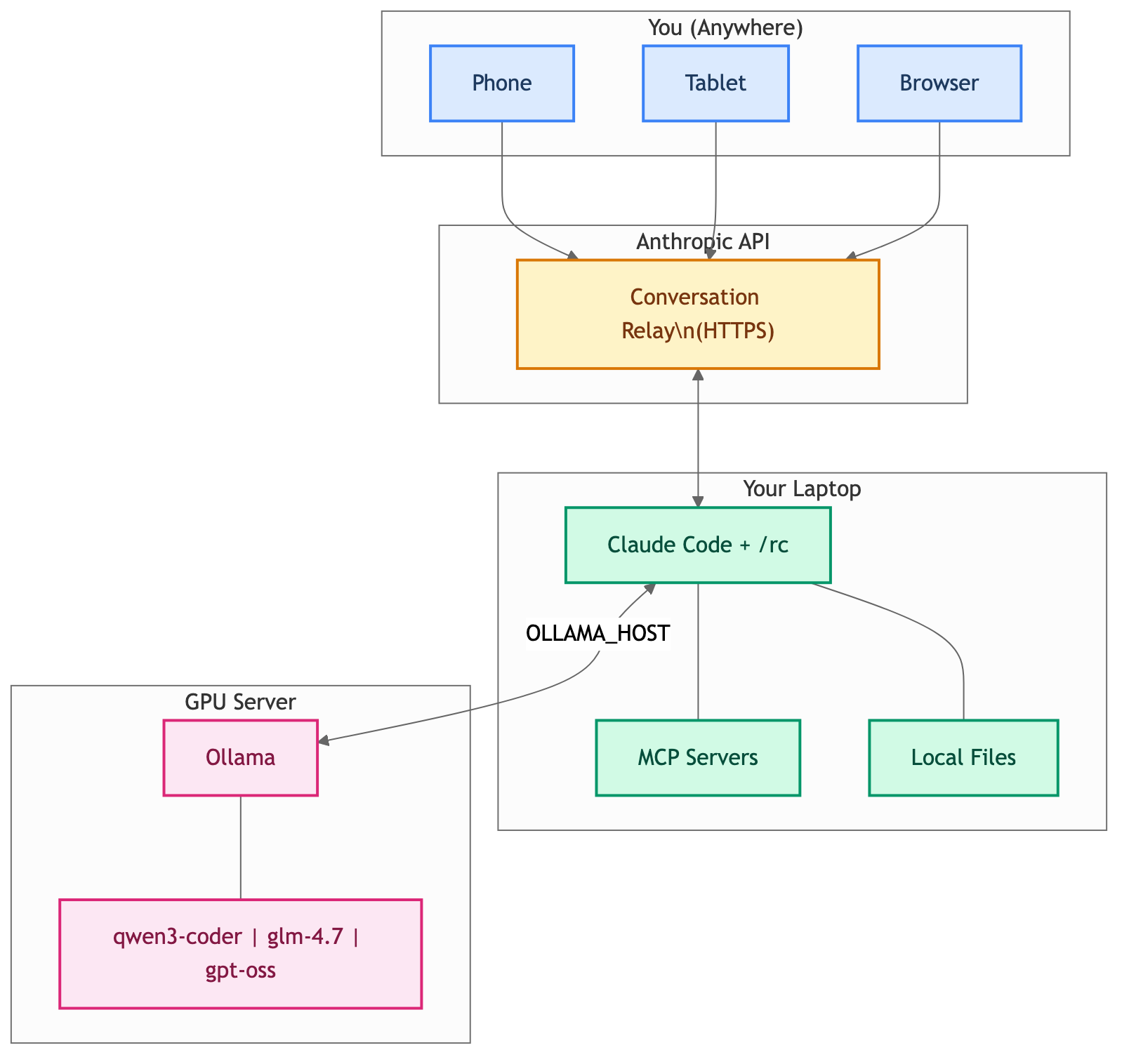
The Use Case: Remote Ollama + Remote Control
Here is the scenario. You have a GPU server (maybe a workstation with an NVIDIA card, or a cloud instance) running Ollama. You want to:
- Run Claude Code on your laptop, pointed at the remote Ollama instance
- Start a Remote Control session so you can monitor and interact from your phone or tablet
- Walk away from your desk while the session keeps running
This gives you powerful self-hosted models doing the actual inference, with the convenience of controlling the session from anywhere in your house (or beyond).
Quick Setup
Step 1: Ollama on Your GPU Server
Make sure Ollama is running and accessible on your network. On the GPU server:
# Install Ollama if you haven't
curl -fsSL https://ollama.com/install.sh | sh

# Pull a model with a large context window
ollama pull qwen3-coder

# Start Ollama listening on all interfaces
OLLAMA_HOST=0.0.0.0 ollama serve
Step 2: Point Claude Code at Remote Ollama
On your laptop, point to the remote Ollama instance and launch Claude Code. There are two ways to do this:
Option A: Using ollama launch claude (recommended)
The simplest approach – Ollama handles all the wiring for you:
export OLLAMA_HOST=http://<gpu-server-ip>:11434
ollama launch claude --model qwen3-coder
Option B: Manual environment variables
If you prefer full control over the configuration:
export ANTHROPIC_AUTH_TOKEN=ollama
export ANTHROPIC_API_KEY=""
export ANTHROPIC_BASE_URL=http://<gpu-server-ip>:11434
claude --model qwen3-coder
Replace <gpu-server-ip> with the actual IP or hostname of your GPU server. Models that work well with this setup include qwen3-coder, glm-4.7, and others with 64K+ token context windows.
Step 3: Start Remote Control
Once Claude Code is running and connected to Ollama, start a Remote Control session:
/rc
You will see a session URL and a QR code. Scan the QR code with the Claude mobile app on your phone, or open the URL in any browser. You are now controlling your local Claude Code session – backed by your GPU server’s Ollama instance – from another device.
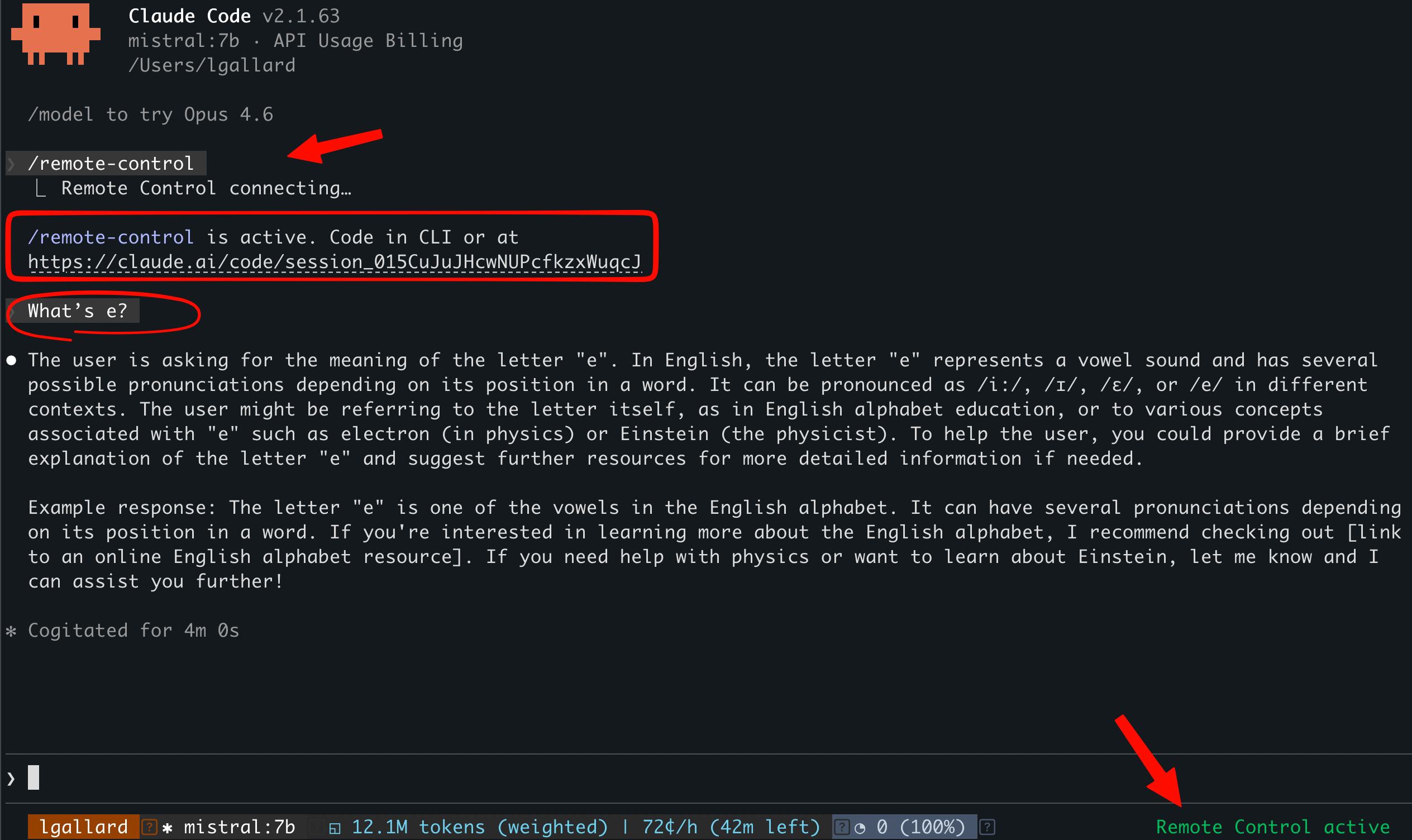
Here is what it looks like in practice, using mistral:7b as the model. Notice the session URL and the “Remote Control active” indicator in the status bar:
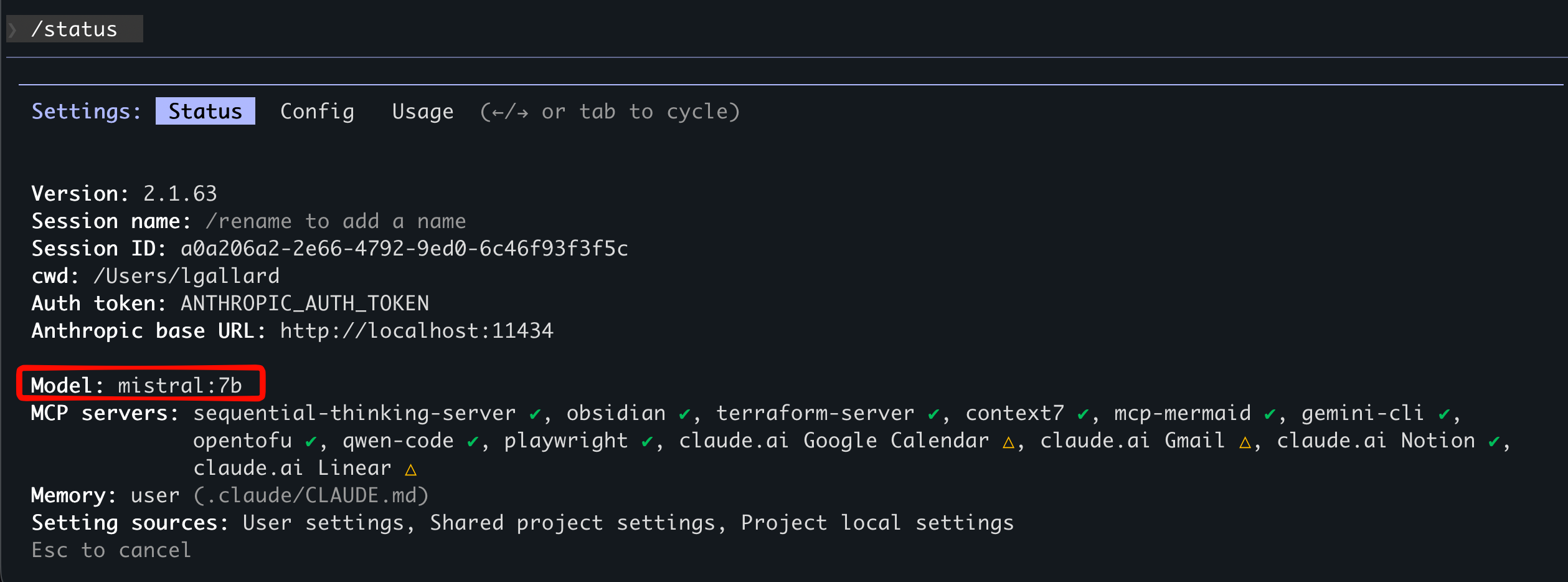
You can verify the connection by running /status – it shows the model, the Anthropic base URL pointing to your Ollama instance, and all your MCP servers still running:
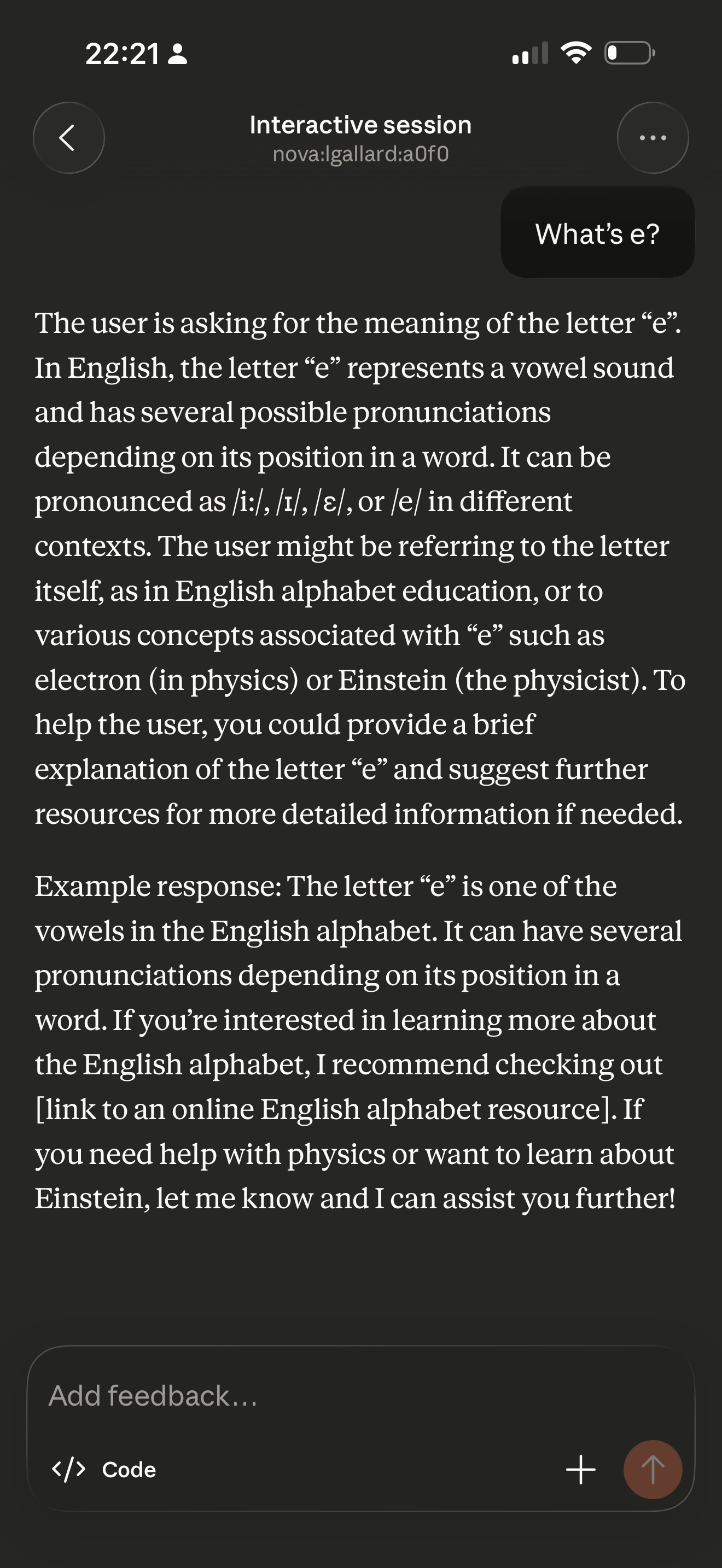
And here is the same session on my phone – the exact same question and response, synced in real time through the Claude mobile app:
Step 4: Walk Away
Your terminal needs to stay open, but you do not need to be sitting in front of it. Send prompts from your phone, review results, and keep working. The session survives brief network hiccups and reconnects automatically.
Things to Keep in Mind
-
Terminal must stay open: If you close it, the session ends. Consider running inside
tmuxorscreen. On macOS, you can also set up Claude Code hooks to runcaffeinateautomatically so your Mac will not sleep mid-session. Add this to your~/.claude/settings.json:{ "hooks": { "SessionStart": [{ "hooks": [{ "type": "command", "command": "caffeinate -dims &", "timeout": 5 }] }], "SessionEnd": [{ "hooks": [{ "type": "command", "command": "pkill -f 'caffeinate -dims'", "timeout": 5 }] }] } } - One remote session at a time: Each Claude Code instance supports a single remote connection.
- Network timeout: If your machine loses connectivity for roughly 10 minutes, the session times out.
- Ollama network security: Exposing Ollama on
0.0.0.0opens it to your network. Use firewall rules or a VPN if you are outside a trusted LAN. - Model limitations: Open-source models via Ollama may not support all Claude Code tool/function calling features. They work well for code generation, explanation, and review, but complex multi-tool operations may not behave as expected.
Wrapping Up
Remote Control + Ollama is a straightforward way to get the best of both worlds: powerful self-hosted GPU inference with the flexibility of controlling your session from any device. No API costs, no cloud dependency for inference, and your code stays on your machines.
If you already have a GPU server running Ollama, adding Remote Control on top takes about two minutes. Give it a try.